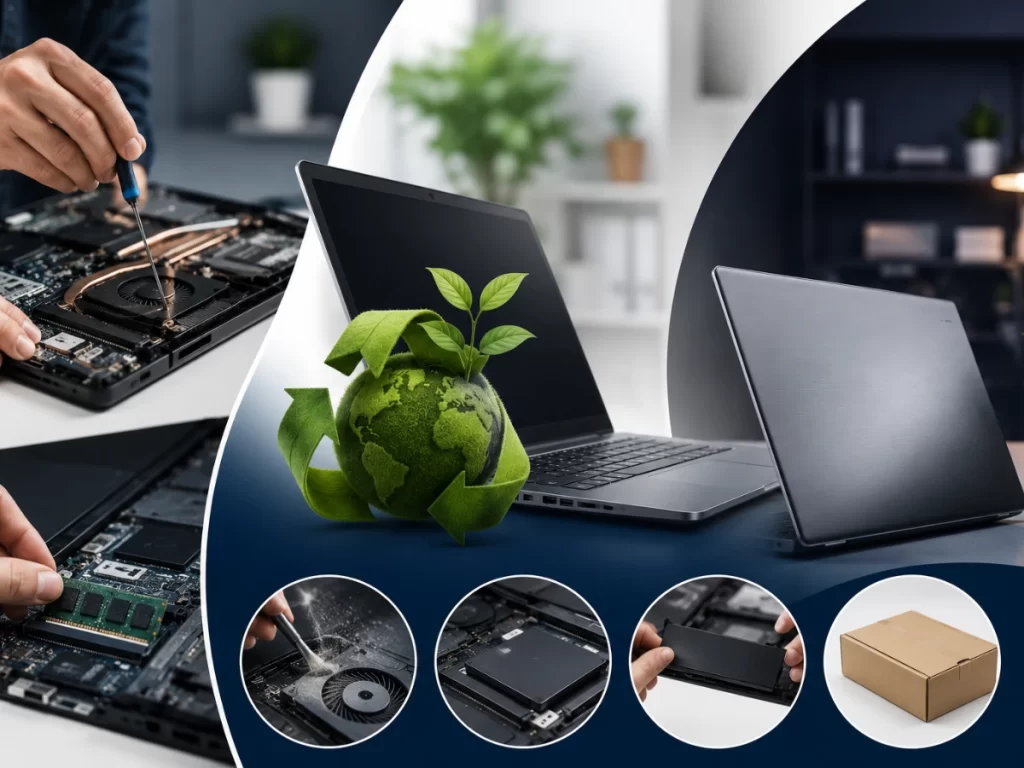
Laptops have become an essential part of modern life, supporting everything from office work and online learning to gaming, designing, and content creation. While most users focus on software updates, storage management, and battery life, one of the most overlooked threats to laptop performance is something surprisingly simple: dust.
Dust accumulation inside a laptop may seem harmless at first, but over time it can significantly reduce performance, cause overheating, shorten hardware lifespan, and even lead to expensive repairs. Many laptop issues that users experience daily often begin silently with poor internal cleanliness.
Understanding how dust affects a laptop can help users take preventive steps before serious damage occurs.
Why Dust Is a Serious Problem for Laptops
Laptops are designed with compact internal components packed closely together. During operation, these components generate heat, especially:
- Processor (CPU)
- Graphics card (GPU)
- Cooling fan
- Motherboard
- Battery
To control this heat, laptops use cooling systems that pull air through internal vents. Unfortunately, dust particles enter along with the airflow and gradually settle inside the device.
Over time, this dust buildup begins affecting critical internal systems.
1. Dust Blocks Airflow and Cooling
One of the first ways dust damages laptop performance is by restricting airflow.
Laptop cooling systems depend on proper ventilation to maintain safe operating temperatures. Dust accumulates around:
- Cooling fans
- Heat sinks
- Air vents
As these areas become clogged, airflow weakens and heat starts building inside the laptop.
Common Signs:
- Loud fan noise
- Laptop becoming unusually hot
- Warm keyboard or bottom surface
- Reduced performance during multitasking
Once airflow is restricted, the laptop struggles to cool itself effectively.
2. Overheating Slows Down Performance
Modern laptops are designed with thermal protection systems. When temperatures become too high, the system automatically reduces processor speed to prevent hardware damage. This process is called thermal throttling.
As a result, users may experience:
- Slow performance
- Lagging applications
- Delayed response times
- Stuttering during video editing or gaming
- System freezing
Many users assume their laptop is “getting old,” when in reality excessive dust is causing overheating-related slowdowns.
3. Dust Increases Fan Stress
Cooling fans work harder when dust blocks ventilation. Instead of operating smoothly, the fans continuously run at high speed trying to remove heat.
This constant strain can lead to:
- Fan wear and tear
- Excessive noise
- Reduced cooling efficiency
- Fan failure over time
If the cooling fan stops functioning properly, internal temperatures can rise dangerously fast.
4. Dust Can Damage Internal Components
Dust does not only affect cooling—it can also directly impact sensitive hardware components.
Fine dust particles may settle on:
- Motherboards
- RAM modules
- Storage drives
- Graphics chips
In humid environments, dust can trap moisture, increasing the risk of:
- Corrosion
- Electrical short circuits
- Hardware instability
Long-term dust accumulation can permanently damage internal components if ignored for too long.
5. Battery Performance Can Be Affected
Heat is one of the biggest enemies of laptop batteries. When dust causes internal temperatures to rise consistently, battery health gradually declines.
Overheating may result in:
- Faster battery drain
- Reduced charging efficiency
- Swollen batteries in severe cases
- Shortened battery lifespan
Maintaining proper airflow helps protect both laptop performance and battery health.
6. Dust Impacts Gaming and Creative Work
Dust-related overheating becomes especially noticeable during heavy workloads such as:
- Video editing
- Gaming
- Graphic designing
- 3D rendering
- Multitasking
These activities already generate significant heat. If the cooling system is partially blocked by dust, performance drops become more severe.
Users may notice:
- FPS drops in games
- Slow rendering speeds
- Software crashes
- Unexpected shutdowns
For creators and professionals, this can directly affect productivity and workflow efficiency.
Why Many Users Ignore the Problem
Dust buildup happens gradually, making it difficult to notice immediately. Performance reduction often occurs slowly over several months, leading users to believe:
- The laptop is outdated
- Software is causing issues
- The battery is failing
- The device needs replacement
In many cases, proper cleaning and maintenance can restore a significant amount of lost performance.
How to Prevent Dust Damage
Preventive maintenance is the best way to protect laptop performance.
Simple Tips:
Use the Laptop on Hard Surfaces
Beds, pillows, and fabric surfaces block vents and increase dust intake.
Clean External Vents Regularly
Use compressed air carefully to remove visible dust.
Keep Workspace Clean
Dusty environments increase internal buildup faster.
Avoid Smoking Near Devices
Smoke particles combine with dust and create sticky residue inside laptops.
Schedule Professional Cleaning
Internal cleaning every 6–12 months helps maintain proper airflow.
Signs Your Laptop May Need Internal Cleaning
You should consider laptop cleaning or servicing if you notice:
- Constant overheating
- Loud cooling fans
- Sudden shutdowns
- Performance drops
- Keyboard area becoming hot
- Slow startup or lag during tasks
Ignoring these warning signs can eventually lead to hardware failure.
Professional Cleaning vs DIY Cleaning
While external cleaning can be done at home, internal laptop cleaning requires caution. Modern laptops contain delicate components that can be damaged if handled improperly.
Professional technicians use:
- Anti-static tools
- Proper disassembly methods
- Thermal paste replacement
- Deep internal cleaning techniques
Professional servicing ensures safe and effective maintenance without risking component damage.
The Long-Term Benefits of Laptop Maintenance
Regular cleaning and maintenance offer several long-term advantages:
- Better cooling performance
- Faster system speed
- Improved battery life
- Reduced hardware stress
- Longer laptop lifespan
- Lower repair costs
A clean laptop operates more efficiently and delivers a smoother user experience.
Conclusion
Dust may seem insignificant, but over time it becomes one of the biggest hidden threats to laptop performance. From overheating and slowdowns to hardware damage and battery problems, dust silently affects nearly every aspect of a laptop’s health.
The good news is that these issues are largely preventable with regular cleaning and proper maintenance. Taking care of your laptop’s cooling system can improve performance, extend device lifespan, and help avoid expensive repairs in the future.
In today’s digital world, maintaining your laptop is not just about software updates—it’s also about keeping the hardware clean, cool, and efficient for long-term reliability.